Account Triggers
Account Triggers automate notifications and actions when accounts meet specific conditions or reach key milestones. Use triggers to alert your team when high-value accounts show buying signals, reach engagement thresholds, or enter target segments.
Understanding Account Triggers
Account Triggers answer: "When should we be notified about account activity?"
Triggers help you:
- Get alerts when target accounts engage
- Know when accounts reach key thresholds
- Automate handoffs to sales
- Monitor account health changes
- Act on buying signals immediately
Account-Level Trigger Types
kenbun supports several trigger types that can work at the account level:
Milestone Triggers
Fire when specific conditions are met:
- Account reaches a certain account score
- Account enters a specific account level (e.g., "Target")
- Account accumulates a threshold of engagement
- Multiple contacts engage
See Milestone Triggers for configuration.
Surge Triggers
Fire when accounts experience burst activity:
- Multiple contacts at an account engage simultaneously
- Account-wide surge indicates buying intent
- Coordinated evaluation activity
See Triggers for configuration.
Sequence Triggers
Fire when accounts complete specific behavior patterns:
- Key contact → Decision maker → Additional stakeholder engagement sequence
- Demo request → Trial signup → Feature adoption
- Content download → Pricing page → Contact sales
See Sequence Triggers for configuration.
Creating Account-Level Triggers
To create triggers that monitor account behavior:
-
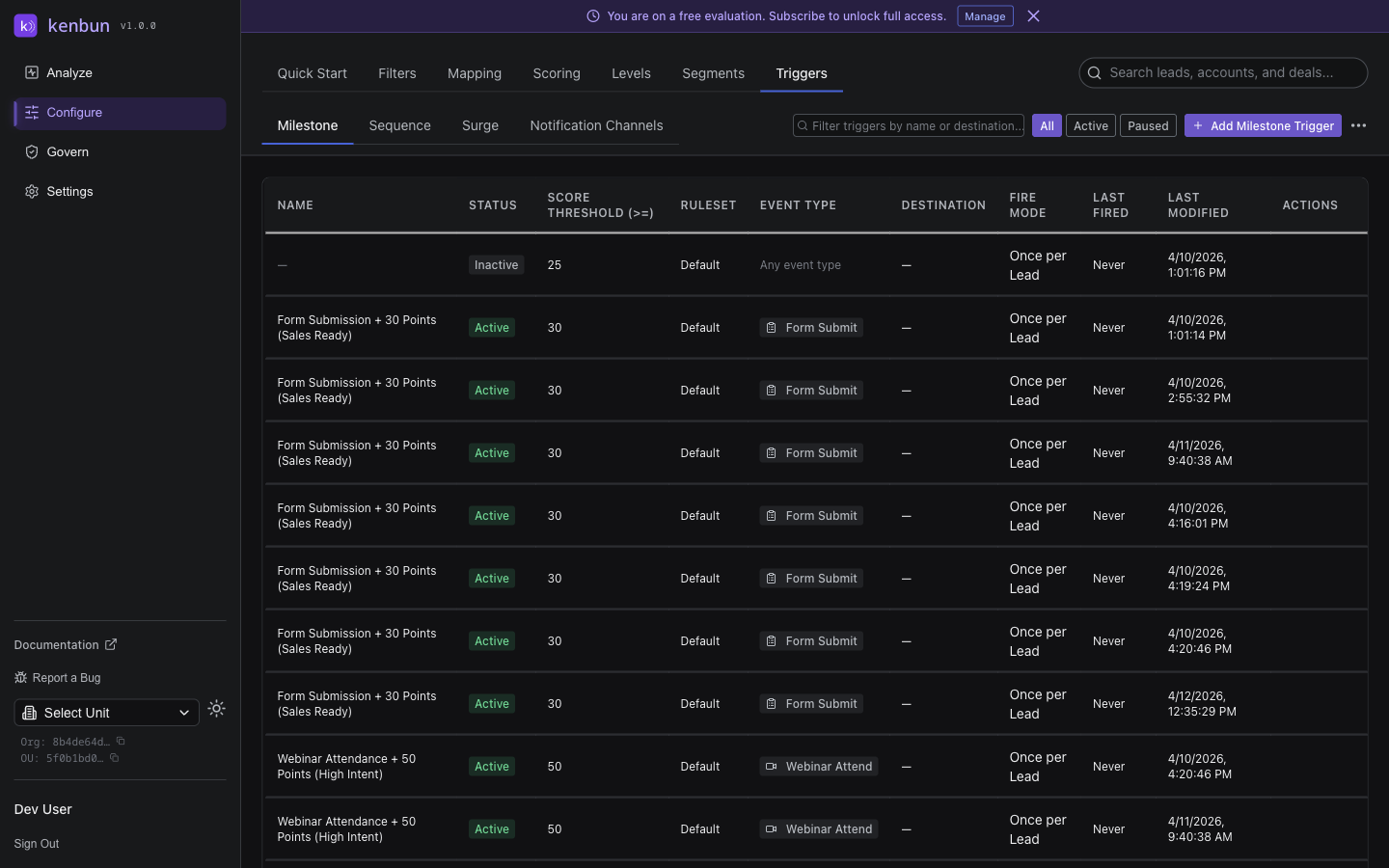
Navigate to Configure > Triggers
-
Choose a trigger type (Milestone, Surge, or Sequence)
-
Click New Trigger
-
Configure conditions using account-level properties:
- Account score
- Account level
- Combined engagement score
- Account metadata fields
-
Set up notification channels:
- Slack
- Microsoft Teams
- Webhooks
-
Click Save
Account-Specific Conditions
Account Score Threshold
Trigger when account score exceeds a value:
Condition: account_score >= 80
Action: Notify #sales-target-accounts in Slack
Use case: Alert sales when accounts reach "Target" ICP fit.
Account Level Change
Trigger when account enters a specific level:
Condition: account_level = "Target"
Action: Create task in CRM for account owner
Use case: Automatically assign high-value accounts to sales reps.
Engagement Threshold
Trigger when combined account engagement is high:
Condition: total_engagement_score >= 200
Action: Notify sales: "Hot account - multiple stakeholders engaged"
Use case: Flag accounts with broad stakeholder interest.
Multi-Threaded Engagement
Trigger when multiple contacts are active:
Condition: active_contacts >= 3
AND key_stakeholder_engaged = true
Action: Notify: "Opportunity ready for sales engagement"
Use case: Identify accounts with multiple stakeholder engagement.
Account Metadata Conditions
Trigger based on firmographic changes:
Condition: account_status = "Customer"
AND plan_upgrade = "Enterprise"
Action: Notify customer success team
Use case: Alert CS when customers expand.
Account Trigger Examples
Target Account Engagement
Goal: Know immediately when a high-value account engages.
Configuration:
Trigger Type: Milestone
Condition: account_level = "Target" AND engagement_score > 50
Notification: Slack #sales-vip-accounts
Message: "🎯 Target account {account_name} is actively engaged!"
Multi-Stakeholder Activation
Goal: Alert when multiple stakeholders engage.
Configuration:
Trigger Type: Surge
Condition: account_surge = true AND active_contacts >= 3
Notification: Slack #sales-hot-leads
Message: "🔥 {account_name} has {active_contacts} active stakeholders"
Multiple Contacts Engaged
Goal: Know when multiple key contacts are active.
Configuration:
Trigger Type: Sequence
Events: contact_1_activity → contact_2_activity
Timeframe: Within 7 days
Notification: Email to account owner
Message: "Multiple stakeholders at {account_name} are engaged"
Account Level Upgrade
Goal: Track when accounts move to higher tiers.
Configuration:
Trigger Type: Milestone
Condition: account_level changed to "Target" (from lower level)
Notification: CRM task creation
Action: "Review {account_name} for outreach"
High-Intent Signal
Goal: Catch accounts showing buying signals.
Configuration:
Trigger Type: Milestone
Condition: pricing_page_views >= 3 AND demo_request = true
Scope: Account-level (any contact)
Notification: Slack + CRM
Message: "🚀 {account_name} showing high purchase intent"
Trigger Notifications
Slack Notifications
Send account alerts to Slack channels:
- Target accounts → #sales-vip
- Hot accounts → #sales-hot-leads
- Customer expansion → #customer-success
Include account details in notification:
- Account name and domain
- Account score and level
- Number of active contacts
- Recent activity summary
- Link to account detail page
Microsoft Teams
Similar to Slack, with Teams-specific formatting:
- Adaptive cards with account info
- Action buttons to view account
- Mentions for account owners
Email Notifications
Send emails to:
- Account owners
- Sales team distribution lists
- Executives for key accounts
Webhooks
Push account data to external systems:
- CRM (Salesforce, HubSpot)
- Marketing automation
- Custom internal tools
- Analytics platforms
Best Practices
Focus on High-Value Accounts
Don't trigger on every account:
- Limit triggers to Target and Qualified accounts
- Set minimum score thresholds
- Filter by key account metadata
Good: Alert on Target accounts with engagement > 100 Bad: Alert on every account with any engagement
Combine Multiple Signals
Trigger on combinations that indicate intent:
- Account score + Engagement + Multi-stakeholder activation
- Firmographic fit + Surge activity + Key page views
Single signals can be noisy; combinations are more meaningful.
Route to the Right Team
Send notifications to appropriate channels:
- Enterprise accounts → Enterprise sales team
- SMB accounts → Inside sales
- Customers → Customer success
- Partners → Partner managers
Include Context in Notifications
Make notifications actionable:
- Account name and link
- Why the trigger fired
- Number of active contacts
- Recent activity summary
- Suggested next action
Avoid Alert Fatigue
Too many notifications = ignored notifications:
- Use higher thresholds for triggers
- Consolidate similar triggers
- Digest mode for lower-priority accounts
- Snooze options for temporarily inactive accounts
Test Triggers Before Production
Before enabling:
- Create trigger in test mode
- Simulate account activity
- Verify notifications arrive correctly
- Review message clarity and actionability
- Enable for production
Review Trigger Performance
Track trigger effectiveness:
- How many alerts fired?
- Were they actionable?
- Did sales follow up?
- What was the conversion rate?
Refine triggers based on results.
Troubleshooting
Triggers Not Firing
Problem: Expected trigger notifications but didn't receive them.
Solution:
- Verify trigger is enabled
- Check condition logic (test with known accounts)
- Confirm notification channel is configured correctly
- Review trigger logs for errors
- Ensure accounts meet all conditions
Too Many Notifications
Problem: Receiving excessive trigger alerts.
Solution:
- Increase threshold values
- Add more specific conditions
- Limit to higher account levels only
- Use digest mode instead of real-time
- Disable or refine overly broad triggers
Notifications Missing Account Data
Problem: Trigger fires but notification lacks account details.
Solution:
- Check that account metadata is populated
- Verify field mappings are configured
- Ensure notification template references correct fields
- Review account detail page to confirm data exists
Wrong Team Receiving Alerts
Problem: Notifications going to wrong Slack channel or team members.
Solution:
- Update notification channel configuration
- Review routing rules
- Adjust account filters to segment by team
- Create separate triggers for different teams
API Access
Manage triggers programmatically:
Related Documentation
- Milestone Triggers - Condition-based triggers
- Surge Triggers - Burst activity detection
- Sequence Triggers - Behavior pattern triggers
- Account Management - Monitor account activity
- ABM Overview - Understanding Account-Based Marketing