Triggers
Triggers automate actions when leads meet specific conditions. Use triggers to notify your team the moment a lead becomes sales-ready, reaches a score threshold, or completes a sequence of actions.
Understanding Triggers
kenbun offers three trigger types:
- Milestone Triggers fire when a lead crosses a score threshold
- Sequence Triggers fire when a lead completes a specific sequence of events in order
- Surge Triggers fire when a lead's activity rate spikes — see Surge Triggers for full details
All trigger types can send notifications to Slack, Microsoft Teams, webhooks, or email.
Milestone Triggers
Milestone triggers activate when a lead's score reaches or exceeds a specific threshold. Use these to notify sales when leads become hot.
How Milestone Triggers Work
- Lead's score changes due to new activity
- kenbun checks if the score crossed a milestone threshold
- Trigger fires and sends notifications
- Recipients receive alert with lead details and score breakdown
Creating a Milestone Trigger
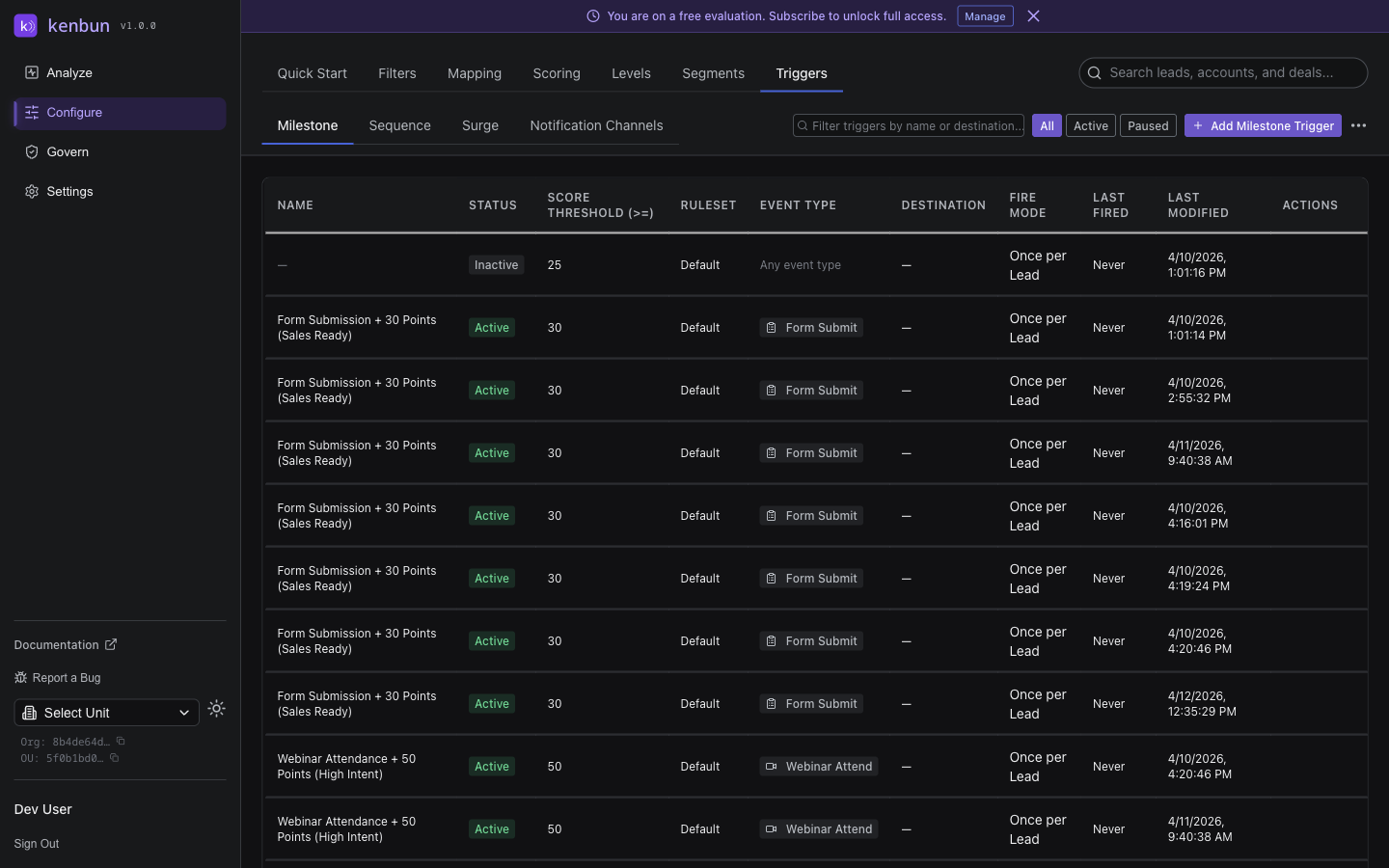
- Navigate to Configure > Triggers > Milestone
- Click Create Trigger
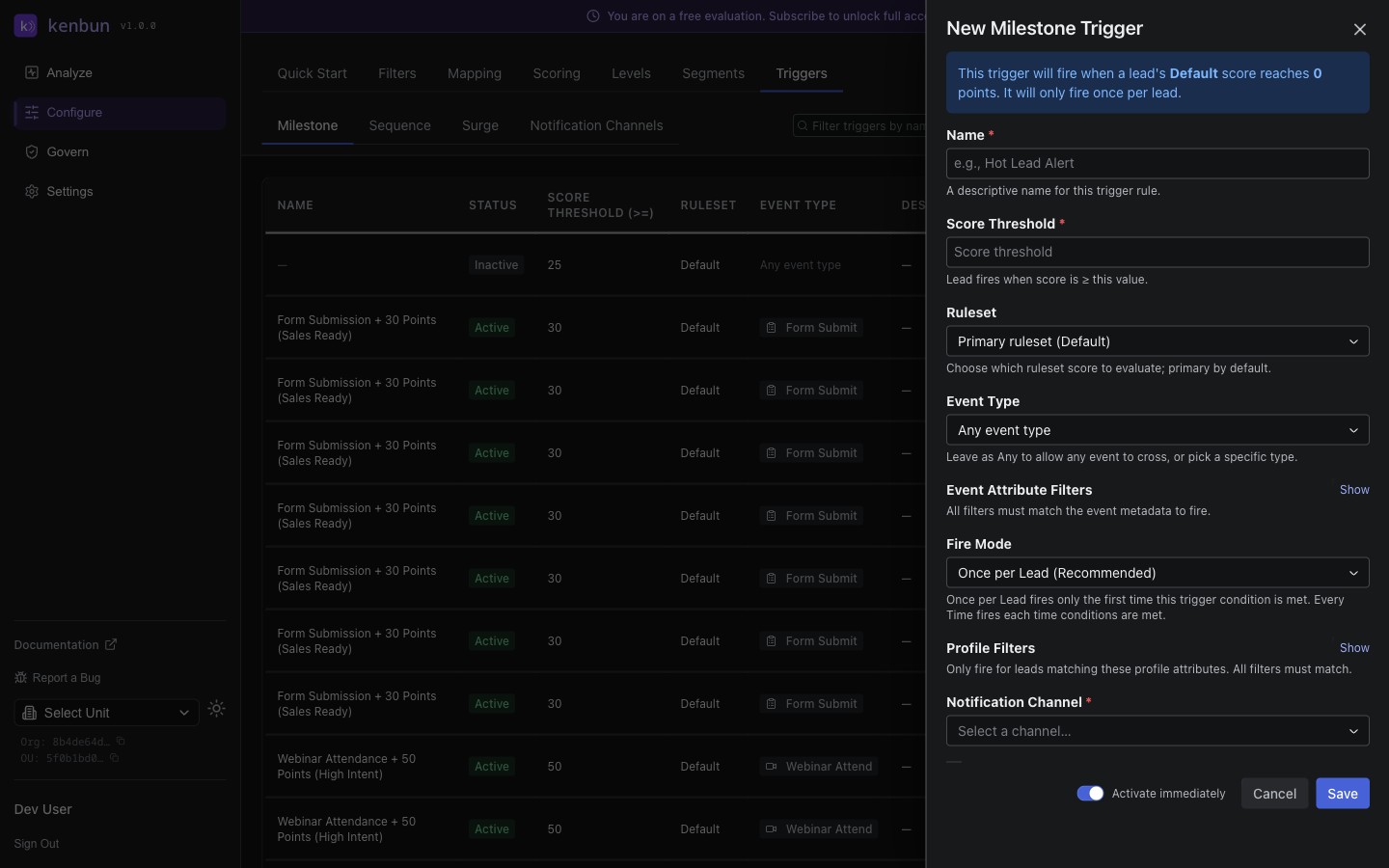
- Configure the trigger settings:
Basic Settings:
- Name (required): Descriptive name (e.g., "Hot Lead Alert - 50 Points")
- Score Threshold (required): Minimum score to activate (e.g., 50)
- Fire Mode: When to fire
- Once: Only fires the first time threshold is crossed
- Always: Fires every time threshold is crossed (use carefully)
- Cooldown Window (when Fire Mode is Always): Minimum time between consecutive firings for the same lead. Set in minutes, hours, or days. Leave empty or set to 0 for no cooldown.
- Activate Immediately: Toggle on to make the trigger active right away, or leave off to save in a paused state.
When a required field is missing, an inline error appears next to the field rather than a generic message.
Lead Filters (Optional):
- Filter by Engagement Level (e.g., only "High" engagement leads)
- Filter by Profile Level (e.g., only "Ideal Customer" profiles)
- Filter by Account Level (e.g., only "Enterprise" accounts)
Notification Settings:
- Slack Channel or User: Send to specific channel or DM
- Teams Channel or User: Send to specific channel or chat
- Webhook URL: POST to external system
- Email: Send to a specific email address (recipient and optional custom subject line)
- Use Saved Channel: Select a Notification Channel to auto-populate the destination fields.
- Click Save Trigger
Milestone Trigger Example
Scenario: Notify sales when a lead reaches 50 points.
- Name: "Sales Alert - Qualified Lead"
- Threshold: 50 points
- Fire Mode: Once
- Notification: Slack channel #sales-alerts
When any lead crosses 50 points for the first time, kenbun posts a message to the #sales-alerts channel with the lead's name, score, and top scoring activities.
Sequence Triggers
Sequence triggers activate when a lead performs a series of events in a specific order within a time window. Use these to identify high-intent behaviors.
Creating a Sequence Trigger
- Navigate to Configure > Triggers > Sequence
- Click Create Trigger
- Configure the trigger settings:
Basic Settings:
- Name: Descriptive name (e.g., "Demo Request Flow")
- Fire Mode: Once or Always
- Cooldown Window (when Fire Mode is Always): Minimum time between consecutive firings for the same lead. Leave empty for no cooldown.
- Activate Immediately: Toggle on to start active; leave off to save paused.
- Time Window: How long to wait for sequence completion (hours)
Event Sequence:
- Add event steps in order
- Each step can specify:
- Event Type: Which event to match (e.g.,
Page View) - Event Filters (optional): Metadata filters (e.g., path contains "pricing")
- Event Type: Which event to match (e.g.,
Example Sequence:
Step 1: Page View (path: /pricing)
  ↓ within 24 hours
Step 2: Email Open (campaign: product_demo)
  ↓ within 24 hours
Step 3: Form Submit (form_type: demo_request)
  → TRIGGER FIRES
Lead Filters and Notification Settings work the same as Milestone Triggers.
- Click Save Trigger
Sequence Trigger Example
Scenario: Alert sales when a lead shows high buying intent.
- Name: "High Intent Sequence"
- Time Window: 48 hours
- Sequence:
- Page View (path contains "pricing")
- Page View (path contains "case-studies")
- Email Open
- Page View (path contains "demo")
- Notification: Slack user @sales-rep
When a lead completes all four steps within 48 hours, the assigned sales rep gets a direct Slack message with the lead's information and recent activity.
Surge Triggers
Surge triggers fire when a lead's activity rate spikes within a rolling window — useful for catching re-engaged leads or rapid research bursts before a competitor does.
See Surge Triggers for the full guide on creating, configuring, and backtesting surge triggers.
Notification Channels
Notification Channels let you save reusable destinations so you don't have to re-enter Slack channel IDs, webhook URLs, or email addresses every time you create a trigger.
Why Use Notification Channels
- Consistency: All triggers pointing to the same team channel use a single saved channel, so a URL change only needs to be made in one place.
- Speed: When creating a new trigger, select a saved channel from the dropdown to pre-populate destination fields.
- Governance: Admins can manage a central list of approved notification destinations.
Setting Up Notification Channels
- Navigate to Configure > Triggers > Notification Channels
- Click Add Channel
- Give the channel a descriptive name (e.g., "Sales Slack - #hot-leads")
- Choose the channel type: Slack, Teams, Webhook, or Email
- Fill in the type-specific details:
- Slack: Channel ID and optional display name
- Teams: Webhook URL and optional channel name
- Webhook: Endpoint URL and optional authorization header
- Email: Recipient addresses and optional subject prefix
- Click Create Channel
Once saved, this channel appears in the notification channel selector when creating or editing any Milestone, Sequence, or Surge Trigger.
Managing Channels
Edit or delete channels from the Configure > Triggers > Notification Channels list. Deleting a channel does not automatically update triggers that were using it — those triggers will need to be reconfigured separately.
Notification Formats
Slack and Teams notifications include lead information, the current score, engagement level, and the top 3 scoring activities from the last 24 hours, plus action buttons (View Lead, Assign to Me).
Example Slack Message:
Hot Lead Alert

Lead: jane.doe@example.com
Score: 75 points
Level: High Engagement

Recent Activity:
- Page View (5x @ 10 pts) +50
- Email Open (3x @ 5 pts) +15
- Form Submit (1x @ 20 pts) +20

[View Lead] [Assign to Me]
Webhook notifications POST a JSON payload with trigger_type, lead_id, score, explanation, score_breakdown, and trigger-type-specific fields. Email notifications include a customizable subject line, lead information, score breakdown, and a link back to kenbun.
The explanation field is included in all trigger notification payloads and gives a plain-language summary of why the trigger fired — useful for displaying context in external systems.
For a full payload reference for milestone, sequence, and surge webhooks, see Trigger API Access below or the API route docs at /triggers, /sequences, and /surge-triggers.
Testing Your Triggers
Before relying on a trigger in production, you can test it against a specific lead to see whether it would fire. This helps you verify thresholds, filters, and sequences without sending actual notifications.
How to Test a Trigger
- Navigate to Configure and open Milestone Triggers or Sequence Triggers
- Find the trigger you want to test in the list
- Click the play icon in the actions column to open the test dialog
- Search for a lead to test against by email or Lead ID
- Optionally adjust the Days to look back (defaults to 30 days)
- Click Run Test
Understanding Test Results
Would Fire: The trigger's conditions are met for this lead. For milestone triggers, the score meets or exceeds the threshold. For sequence triggers, the lead completed the required event sequence within the time window.
Would Not Fire: The conditions are not met. Review the lead's score or event history to understand why, and adjust your trigger configuration if needed.
The test also shows the number of matches and, when applicable, a list of matched lead IDs. For surge trigger backtesting, see Surge Triggers.
Trigger Best Practices
Choosing Thresholds
Milestone Trigger Thresholds:
- Start with 3-4 milestones maximum
- Align thresholds with engagement levels
- Example thresholds: 25 (warm), 50 (hot), 75 (very hot)
- Test and adjust based on conversion data
Sequence Trigger Windows:
- 24 hours: High-intent, immediate action sequences
- 48-72 hours: Nurture sequences
- 7 days: Long-term research behaviors
Fire Mode Selection
Use "Once" for score milestones, conversion sequences, and CRM tasks/assignments — to avoid notification spam.
Use "Always" for ongoing behavior monitoring or webhook integrations that need every occurrence — pair with a cooldown to control frequency.
Cooldown Window (used with "Always"): Set a cooldown to prevent the same lead from triggering repeated notifications. For example, a 24-hour cooldown means each lead can only fire that trigger once per day.
Activate Immediately: Turn off when creating a trigger you plan to test before going live. Save it paused, test it, then activate when ready.
Lead Filtering
Combine score thresholds with lead filters for precision:
- Enterprise leads only: Threshold 50 + Account Level Enterprise
- Ideal customer profiles: Threshold 40 + Profile Level Ideal Customer + Engagement Level High
- Specific engagement tier: Threshold 30 + Engagement Level Medium or High
Notification Routing
- Slack: Use channels for team alerts (#sales-hot-leads); DMs for individual assignments. Create dedicated channels per trigger type.
- Teams: Similar to Slack — channels for team visibility, chats for 1:1.
- Webhooks: Route to CRM for auto-assignment, marketing automation for campaign enrollment, or Zapier for multi-system workflows.
Advanced Patterns
Sequence Patterns for Buying Intent
High-Intent Research (24h):
- Page View (pricing)
- Page View (features)
- Page View (case-studies)
Demo Request Journey (48h):
- Email Open (product announcement)
- Page View (demo page)
- Form Submit (demo request)
Re-Engagement Success (7 days):
- Email Open (re-engagement)
- Page View (any)
- Email Open (follow-up)
Tiered Triggers
Use multiple triggers together for sophisticated workflows:
- Tier 1 Alert (Score 25) → Slack #marketing channel + nurture campaign
- Tier 2 Alert (Score 50) → Slack #sales channel + CRM task for SDR
- Tier 3 Alert (Score 75) → DM to AE + auto-assign in CRM
Troubleshooting
Trigger Not Firing
- Trigger is enabled (not paused)
- Lead actually crossed the threshold (check score)
- Fire mode is set correctly (Once vs Always)
- Lead filters aren't excluding the lead
- Integration is connected (Slack, Teams)
For Sequence Triggers:
- Events occurred in correct order
- Events occurred within time window
- Event types match exactly (case-sensitive)
- Event metadata filters match (if used)
Too Many Notifications
- Change fire mode from "Always" to "Once"
- Increase threshold to reduce trigger frequency
- Add lead filters to narrow the audience
- Use separate channels for different trigger tiers
Notifications Not Received
Slack: Verify integration is connected, channel exists and bot has access, user mentions work, workspace permissions are correct.
Teams: Verify integration is connected, webhook URL is valid, channel/chat access works, app permissions are configured.
Webhooks: Verify URL is accessible, endpoint accepts POST, returns 200 OK, signature validation passes.
Score Breakdown Not Showing
Score breakdown shows the top 3 activities from the last 24 hours. If a lead has no recent activity, the breakdown may be empty. Filtered events and decay don't appear.
Finding and Sorting Triggers
Both lists support search, filtering, and column sorting:
- Search: Type any part of a trigger name to filter the list instantly.
- Status Filter: Switch between All, Active, and Paused.
- Column Sorting: Click Name, Status, or Last Fired / Last Modified column headers to sort.
Past Trigger History
The Past Trigger History table at the bottom of the Milestone Triggers and Sequence Triggers pages shows when each trigger last fired and which leads were involved. The Refresh button at the top pulls the latest data without reloading the page.
Trigger History on Lead Detail
The Trigger History tab on a lead's detail page shows all triggers that have fired for that lead, organized by type — milestone, sequence, and surge — with expandable details for each fire.
Trigger History on Account Detail
The Trigger History tab on an account's detail page shows all trigger fires across every lead associated with that account, organized by trigger type.
Editing Sequence Triggers
To edit an existing sequence trigger, click the pencil icon in the actions column on the Sequence Triggers list. This opens the full trigger editor so you can change the event pattern, time window, filters, and notification settings.
Attribute Filter Validation (Regex)
When adding event attribute filters to a trigger (or to individual steps in a sequence trigger), the Regex match operator requires a valid regular expression. Invalid patterns return a clear error before saving — for example: "Invalid regex pattern for field path: missing closing parenthesis".
This validation applies to event attribute filters on milestone triggers, step-level attribute filters on sequence triggers, and lead attribute filters on both trigger types.
API Access
You can manage triggers programmatically. Common endpoints:
| Endpoint | Description |
|---|---|
GET /triggers, POST /triggers | List and create milestone triggers |
PUT /triggers/{id}, DELETE /triggers/{id} | Update and delete milestone triggers |
POST /triggers/{id}/simulate | Test a milestone trigger against a lead |
GET /sequences, POST /sequences | List and create sequence triggers |
POST /sequences/{id}/simulate | Test a sequence trigger against a lead |
GET /surge-triggers, POST /surge-triggers | List and create surge triggers |
POST /surge-triggers/{id}/preview | Aggregate backtest across all leads |
POST /surge-triggers/{id}/simulate | Backtest against a single lead |
GET /leads/search?q={query} | Search for a lead by email or ID |
For full request and response details, see the API route docs:
Related Features
- Surge Triggers — Detect sudden activity bursts
- Notification Channels — Save reusable destinations
- Slack Integration — Connect kenbun to Slack
- Sequences — Sequence trigger configuration details
- Webhooks — Integrate with external systems