Getting Started with kenbun
In the next 10 minutes, you'll have lead scoring rules running and your first alert configured. By tomorrow, you'll see which prospects are showing real buying intent.
Step 1: Create Your Account
- Go to app.kenbun.io
- Click Sign Up and follow the prompts
- Verify your email to activate your account
Already have an account? Click Log In. Forgot your password? Use Reset Password.
New account free trial: Every new organization starts with a 7-day free trial — no credit card required to get started. You will be guided through the Quick Start wizard automatically after signing in for the first time. See Billing and Subscription for details on plans and event limits.
Step 2: Explore Your Dashboard
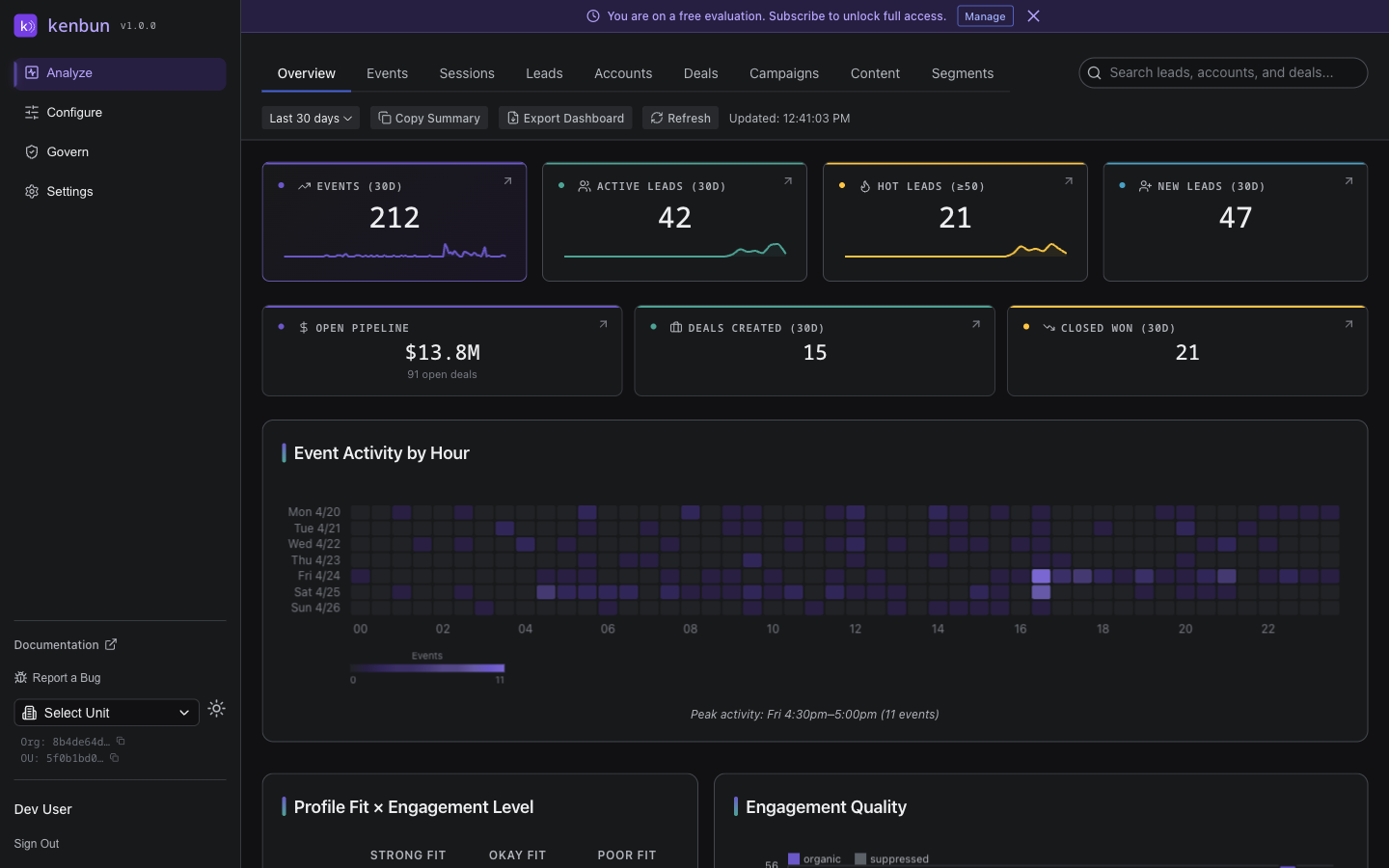
After signing in, you'll land on your dashboard. Here's what you're looking at:
Lead Scores - See who's most engaged right now, ranked by points
Recent Activity - The latest events from your leads (email opens, page views, etc.)
What this means for you: One glance tells you which leads deserve your attention today.
Step 2b: Complete Your Setup Checklist
When you first sign in, a Get Started checklist appears at the top of the Overview dashboard. It tracks three setup steps and updates automatically as you complete them — no checkboxes to tick manually.
The three steps are:
- Connect an integration — Link HubSpot, Slack, Teams, SFMC, or install the web beacon so kenbun can receive data
- Create your first scoring rule — Go to Configure > Scoring and add at least one rule
- Set up engagement levels — Go to Configure > Levels and define what "warm," "hot," etc. mean for your team
Once all three are complete, the checklist displays a brief success message and permanently hides itself.
Don't need the checklist? Click the X in the top-right corner of the card to permanently dismiss it at any time.
Step 3: Understand Where Things Live
Leads - Search for people, view their activity timeline, and see their current score
Events - Browse all captured activity. Filter by event type, date range, or specific lead.
Configure - Build the scoring logic that turns activity into points (this is where the magic happens)
Settings - Manage your profile, invite team members, connect integrations, and generate API keys
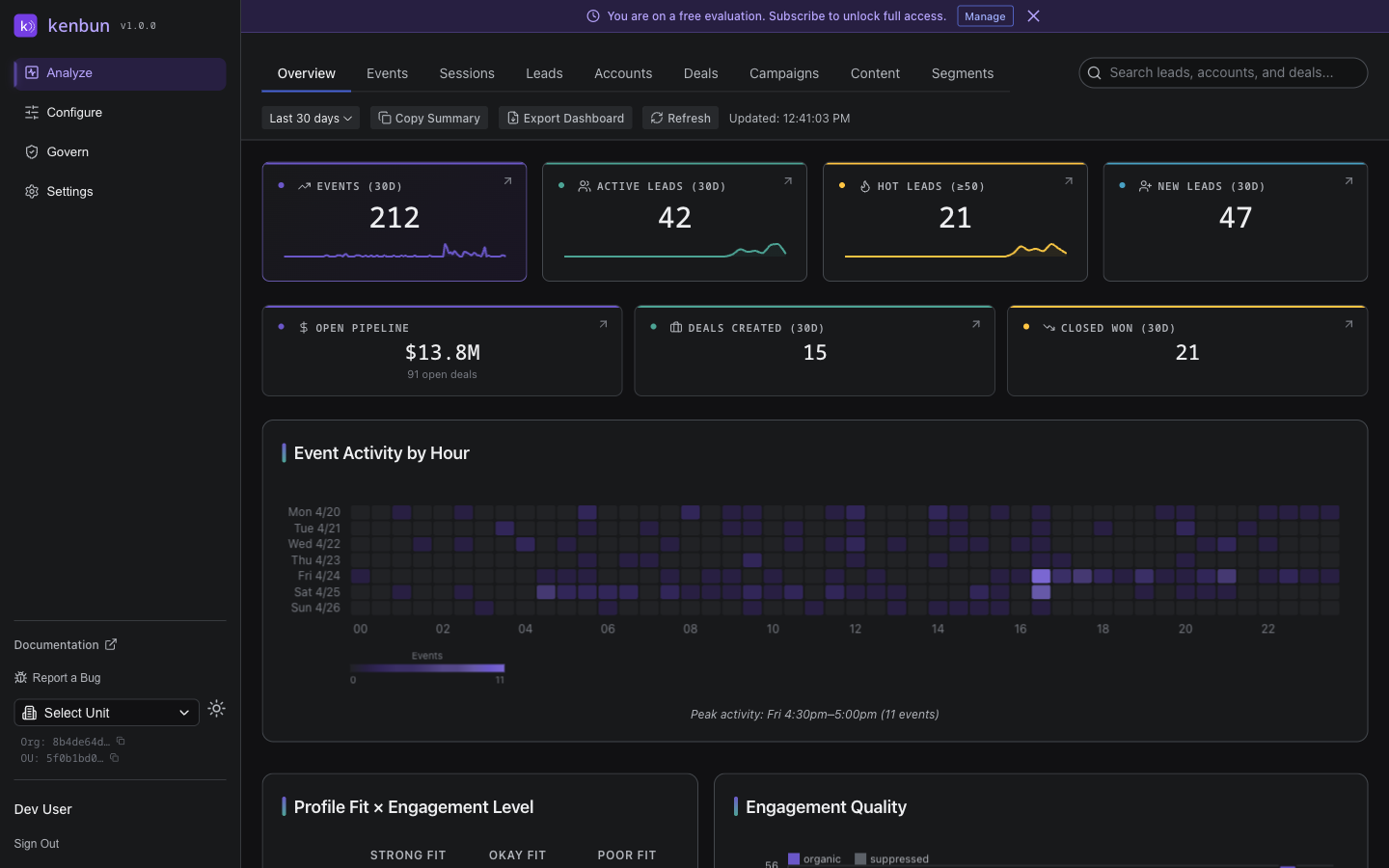
Step 4: Build Your First Scoring Model
This is the core of kenbun. Follow these four steps:
1. Pick Your Key Activities
Think about which actions signal real interest. Common examples:
- Email open
- Pricing page view
- Demo request
- Free trial signup
- Webinar attendance
Start small: Pick 3-5 event types that matter most to your sales team.
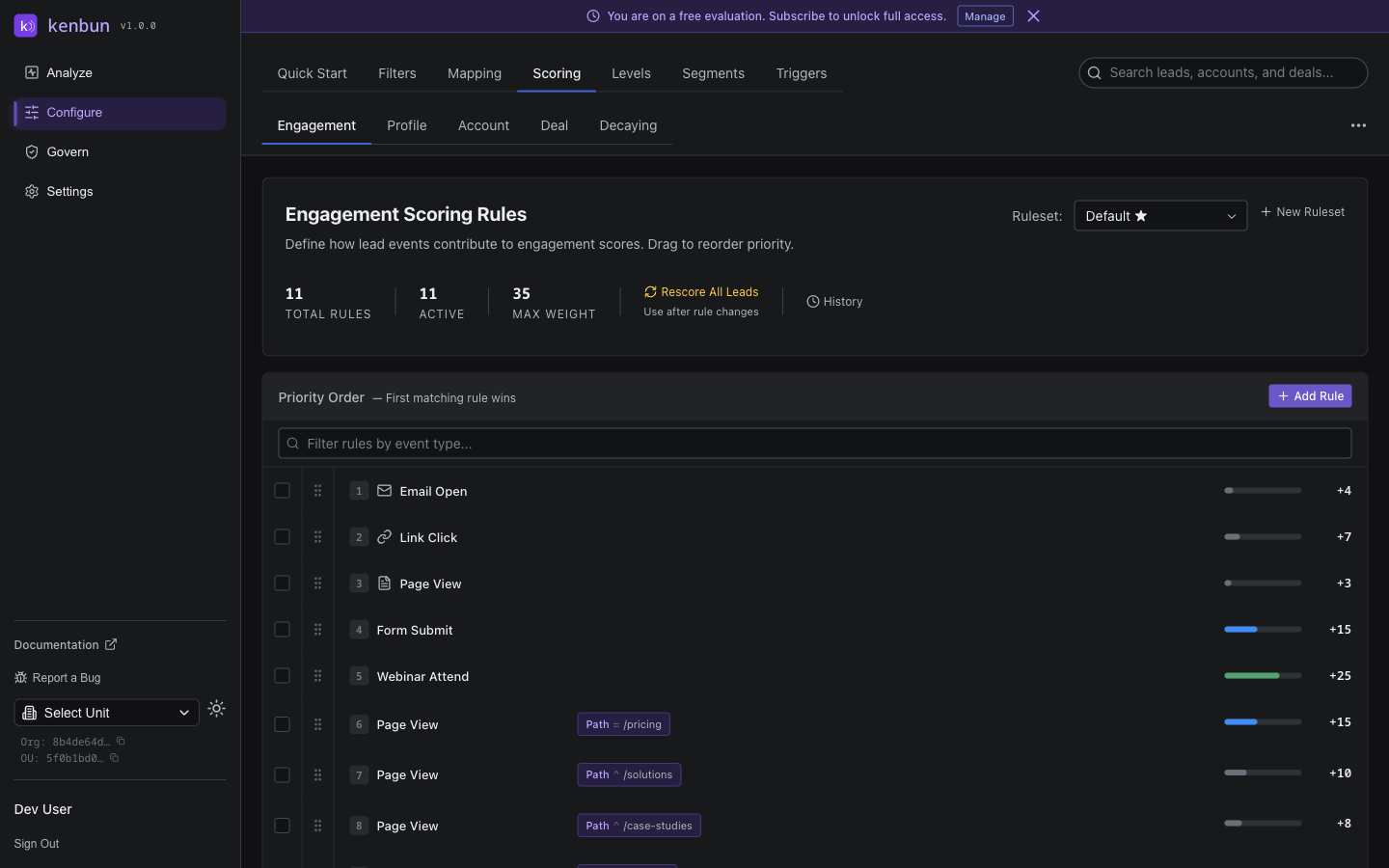
2. Add Scoring Rules
Assign point values that reflect business impact:
- Low intent: Email open = 5 points
- Medium intent: Page view = 10 points
- High intent: Form submission = 20 points
- Very high intent: Demo request = 50 points
Go to: Configure > Scoring, then create a ruleset and add rules
Quick Start Option: kenbun's Quick Start wizard can generate a complete scoring configuration in minutes based on your industry. It creates scoring rules, levels, filters, segments, and triggers all at once. Available industry templates include:
- SaaS - Software subscriptions, trials, demos, and product-led growth
- E-commerce - Online retail, DTC brands, carts, purchases, and loyalty
- B2B Services - Agencies, MSPs, and outsourced business services
- Professional Services - Consulting, legal, accounting, and advisory firms
- Healthcare - Health tech, medical devices, EHR, and telehealth platforms
- Financial Services - Fintech, payments, lending, and wealth management
- Education / EdTech - Online courses, LMS platforms, enrollment, and student engagement
- Insurance - Carriers, brokers, insurtech -- quotes, applications, and policies
On Step 1 of the wizard, you can optionally enter your website URL to automatically discover page-view scoring rules. kenbun crawls your site's page structure and proposes scoring rules based on the types of pages found -- demo pages, pricing, blog, case studies, and more.
Navigate to Configure > Quick Start to launch the wizard, or build rules manually below.
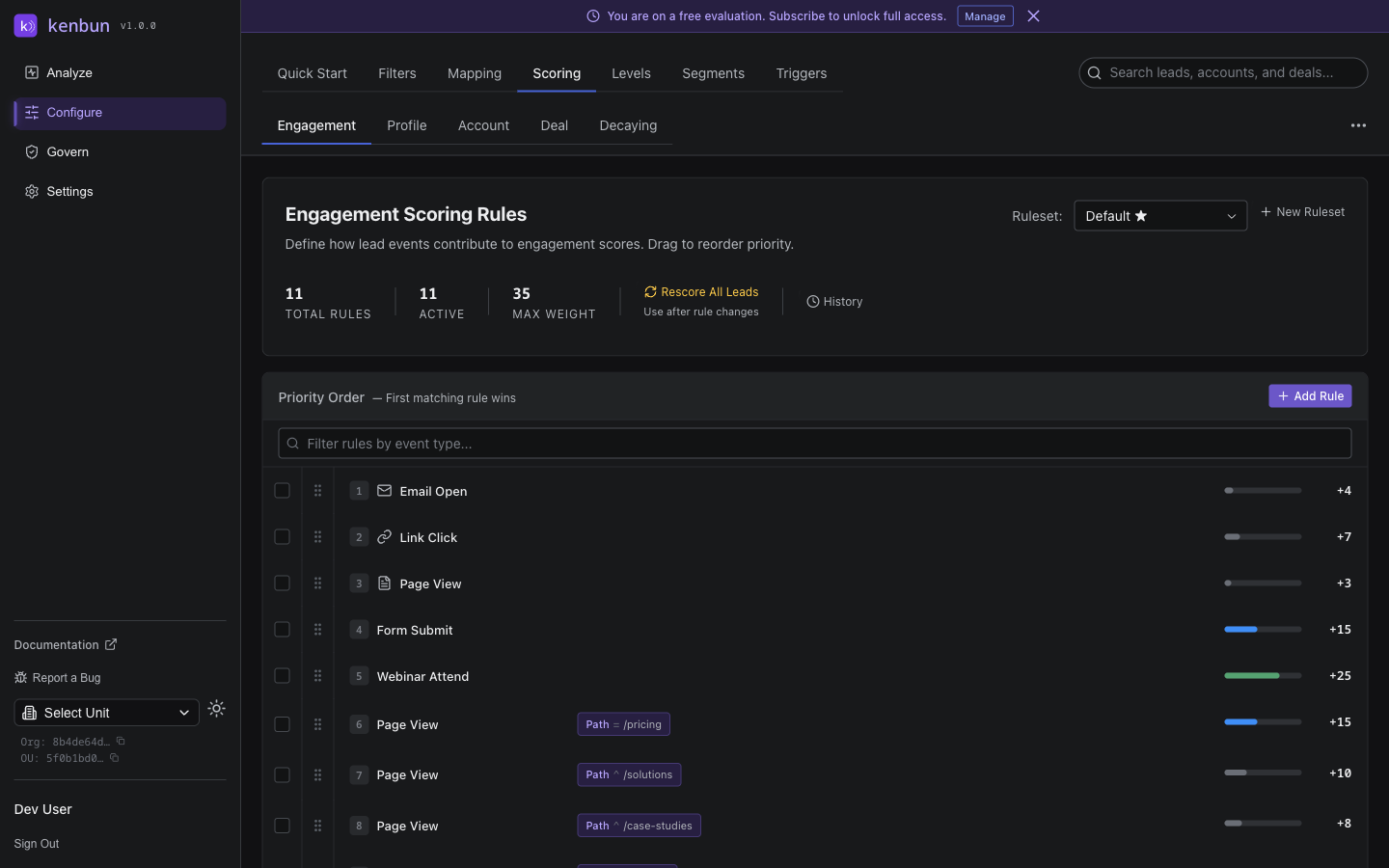
What success looks like: Your first ruleset with 3-5 rules (either from a template or custom-built), each tied to a meaningful action.
3. Set Up Your First Alert
Now make your scoring actionable. Create a trigger that notifies sales when a lead gets hot:
Example: Alert #sales-hot-leads in Slack when a lead reaches 50 points
Go to: Configure → Milestone Triggers → Create Trigger
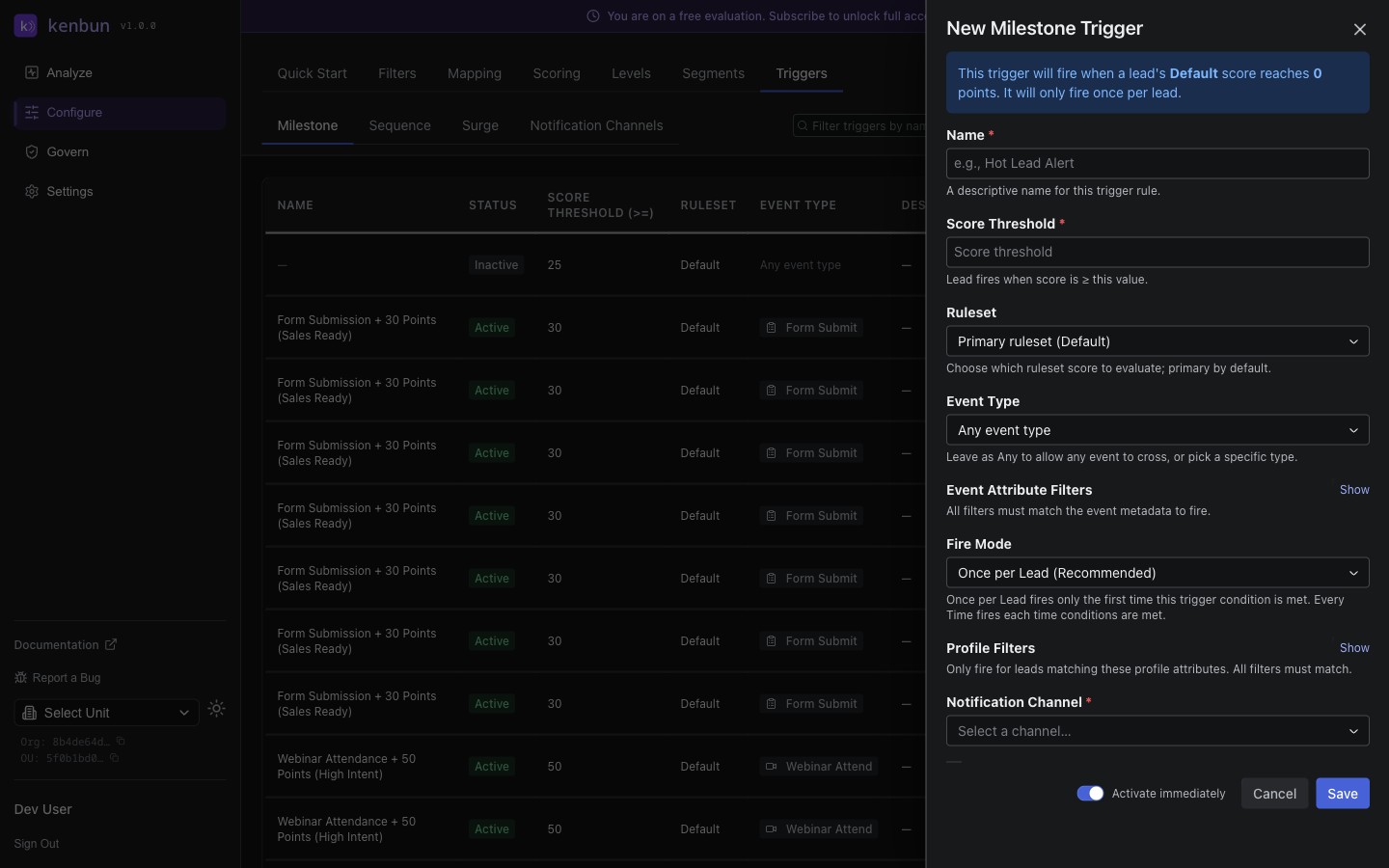
What success looks like: Your first trigger configured and active. When a lead crosses 50 points, your team gets notified automatically.
4. Import Sample Events (Optional)
Want to see scoring in action immediately? Upload a small batch of past events:
Go to: Leads → Import → Upload CSV
Pro tip: Start with 10-20 sample events from your best leads. Watch how their scores stack up. If the numbers feel wrong, adjust your rules before importing more data.
What Success Looks Like
After your first 10 minutes, you should have:
- ✅ Account created and verified
- ✅ One ruleset with 3-5 scoring rules
- ✅ At least one milestone trigger configured
- ✅ (Optional) Sample events imported to test scoring
Within 24 hours, you should see:
- Lead scores updating in real-time as new events arrive
- Your first "hot lead" alert firing when someone crosses your threshold
- A clear view of which prospects are most engaged
Within one week, you'll know:
- Whether your point values reflect real lead quality
- Which event types matter most for your business
- How to adjust rules to fine-tune your scoring model
Key Concepts to Understand
Leads vs. Accounts
- Lead = A person (e.g., jane@example.com)
- Account = A company (e.g., Example Corp)
- You can work with both leads and accounts. Enable Account-Based Marketing (ABM) in your scoring settings to track engagement at the account level.
Event Types
Labels for activities like Email Open, Page View, Form Submit. You define what matters, and kenbun tracks it.
Lead Scoring Points accumulate when leads engage. Optionally, scores can decay over time when leads go quiet, keeping your data fresh.
Triggers Automated actions that fire when conditions are met:
- Milestone Triggers: Fire when a lead crosses a score threshold
- Sequence Triggers: Fire when a lead completes a specific series of actions
Need Help?
In the Docs You're here — browse topics anytime. The sidebar has everything from API details to integration guides.
In the App Open the Help menu to contact support, report issues, or request features.
Integration Guides See Integrations to connect HubSpot, Slack, Teams, AI assistants, and more.
API Reference Developers can dive into API Routes for complete endpoint documentation.
Billing and Plan Details See Billing and Subscription for information about your plan, trial period, and event limits.
Pro Tips for Your First Week
Start Simple Add 3-5 rules. Watch how scores behave for a week. Adjust point values based on what you learn. Don't overcomplicate it on day one.
Involve Sales Early Ask your sales team: "Which leads have been easiest to close?" Look for patterns in their engagement. Build rules around those signals.
Test with Real Data Import 100-200 events from your best and worst leads. If your best leads don't score high, your rules need tweaking.
Set Conservative Thresholds Start with a higher trigger threshold (like 75 points) and lower it once you're confident in your scoring model. Better to miss a few early alerts than flood sales with false positives.
Document Your Decisions Add notes when you create rules explaining why each activity is worth its points. Future you will thank you.
Next Steps
- Build Advanced Scoring → - Learn about rulesets, decay rules, and sequence triggers
- Connect Your Tools → - Sync with HubSpot, set up Slack alerts, or connect AI assistants
- Import Leads in Bulk → - Upload historical data or sync from your CRM
Ready to get strategic? Check out Configure to master the system.