Segments
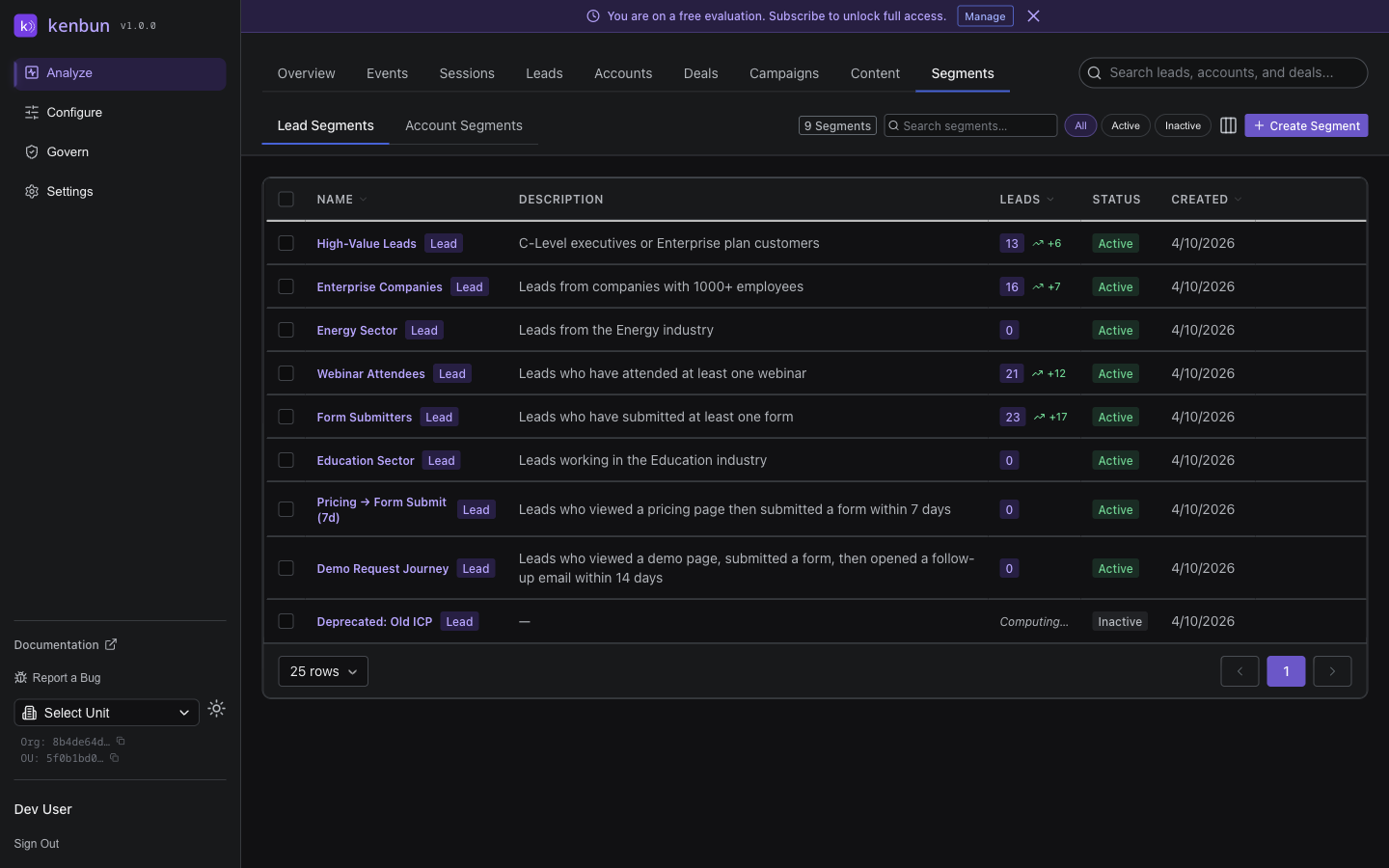
Segments automatically group leads based on shared characteristics or behaviors. Use segments to identify patterns, personalize outreach, and measure campaign effectiveness.
What Is a Segment?
A segment is a dynamic group of leads that match specific criteria. As leads engage and their scores change, they automatically move in and out of segments.
Example segments:
- Hot Leads: Engagement score ≥ 50
- Enterprise Prospects: Company size > 1,000 employees
- Trial Users: Performed "trial_signup" event
- Email Engaged: Opened email in last 7 days
- High-Intent Researchers: Viewed pricing page + case study + docs
Creating Segments
Build segments using filters and conditions:
Simple Segments (Single Condition)
Segment: "Hot Leads"
Condition: Engagement Score ≥ 50
Segment: "Recent Activity"
Condition: Last Activity within 7 days
Complex Segments (Multiple Conditions)
Segment: "High-Value Prospects"
Conditions:
  - Engagement Score ≥ 30
  - Company Size > 500
  - Industry = "Technology"
  - Viewed pricing page
Segment: "Stalled Trials"
Conditions:
  - Performed "trial_signup" event
  - Last Activity > 14 days ago
  - Did NOT perform "api_call" event
Behavior-Based Segments
Group leads by specific action sequences:
Segment: "Demo-Ready Leads"
Conditions:
  - Viewed pricing page
  - Downloaded whitepaper OR attended webinar
  - Engagement Score ≥ 40
Segment by Sales Disposition
You can also group leads by the sales outcome your team logged on them. Add a Disposition rule in the segment builder to match against the six outcome values.
A disposition rule supports four operators:
| Operator | Matches leads where the disposition... |
|---|---|
| equals | is exactly the outcome you choose (for example, Qualified (SQL)) |
| not equals | is anything other than the outcome you choose (including no disposition) |
| is empty | has not been set yet |
| is not empty | has any disposition logged |
When you pick equals or not equals, choose from the six outcomes: Qualified (SQL), Rejected (Not ICP), Rejected (No Response), Nurture, Closed Won, or Closed Lost.
Example disposition segments:
Segment: "Awaiting Sales Outcome"
Conditions:
  - Engagement Score ≥ 50
  - Disposition is empty
Segment: "Rejected but Re-Engaging"
Conditions:
  - Disposition equals Rejected (No Response)
  - Last Activity within 7 days
Membership updates automatically as reps log or change outcomes — mark a lead Qualified (SQL) and it moves out of an "Awaiting Sales Outcome" segment right away. See the Sales Disposition guide for what each outcome means.
Using Segments
1. Personalized Outreach
Scenario: Different messaging for different segments
- Hot Enterprise Leads: Direct sales outreach with case studies
- Warm SMB Leads: Automated email nurture with product tips
- Cold Leads: Educational content to build awareness
2. Campaign Measurement
Scenario: Track campaign impact
- Create segment: "Webinar Attendees"
- Measure average engagement score before webinar
- Measure average engagement score 7 days after webinar
- See if the webinar increased engagement
3. Lead Handoff Rules
Scenario: Route leads to the right team
- Segment "Enterprise Hot Leads" → Alert enterprise sales team
- Segment "SMB Trial Users" → Alert inside sales team
- Segment "Unqualified" → Continue marketing nurture
4. Re-Engagement Campaigns
Scenario: Win back cold leads
Segment: "Previously Hot, Now Cold"
Conditions:
  - Current Engagement Score < 20
  - Max Historical Score ≥ 50
  - Last Activity > 60 days
Send targeted re-engagement campaign to this segment.
Segment Analytics
For each segment, you can see:
- Member Count: How many leads match the criteria
- Average Score: Mean engagement score across segment members
- Score Trend: Is the segment getting hotter or colder?
- Top Events: Most common actions performed by segment members
- Conversion Rate: If integrated with CRM, % who became customers
Dynamic vs. Static Segments
Dynamic Segments (Default)
Membership updates automatically as leads change:
- Lead scores 51 points → Automatically enters "Hot Leads" segment
- Lead goes inactive for 30 days → Automatically exits "Recent Activity" segment
Static Segments (Manual Snapshot)
Lock segment membership at a point in time:
- Useful for campaign cohorts: "Q1 Webinar Attendees"
- Historical analysis: "Leads as of Jan 1, 2025"
Segment Membership History
kenbun automatically tracks when leads enter and exit each segment. This history lets you see the full lifecycle of a lead's segment membership without any manual effort.
From a lead's detail page, you can see:
- Which segments the lead currently belongs to
- When they first entered each segment
- When they exited a segment (if they no longer match its criteria)
- Which specific conditions caused the entry or exit (e.g., "Engagement Score crossed 50" or "Performed pricing_page_view event")
Why this matters:
- Understand lead progression: See how a lead moved from "Warm" to "Hot" to "Demo Ready" over time
- Spot regression: Identify leads that fell out of high-value segments and may need re-engagement
- Audit segment logic: Confirm that your segment rules are working as expected by reviewing real membership events
- Attribution: Connect segment membership changes to campaigns or outreach activity
API Access
Manage segments programmatically:
- GET /segments - List all segments (if available)
- POST /segments - Create new segment (if available)
- Query leads by segment to power custom workflows
Best Practices
1. Start Simple
Begin with basic score-based segments:
- Cold (0-24 points)
- Warm (25-49 points)
- Hot (50-74 points)
- Very Hot (75+ points)
2. Build Actionable Segments
Every segment should drive a specific action:
- Hot Leads → Sales calls this segment
- Trial Not Activated → Send activation tips
- High-Fit, Low-Engagement → Launch targeted campaign
3. Monitor Segment Size
- Too large (>50% of your leads) → Too broad, not useful
- Too small (<1% of your leads) → Too narrow, or rare behavior
Aim for segments with 5-20% of your leads.
4. Combine Engagement + Fit
Don't just segment by score—layer in profile attributes:
- Hot + Enterprise = Top priority for AEs
- Hot + SMB = Top priority for inside sales
- High-Fit + Low-Engagement = Marketing nurture opportunity
5. Review Regularly
Set calendar reminders to review segments monthly:
- Are segment definitions still relevant?
- Do segment sizes make sense?
- Are segments driving results?
Common Segment Ideas
By Engagement Level:
- Hot Leads (ready to buy)
- Warm Leads (evaluating)
- Cold Leads (awareness stage)
By Behavior:
- Pricing Page Viewers
- Trial Users
- Email Engagers
- Event Attendees
- Multi-Touch Leads (engaged through multiple channels)
By Lifecycle Stage:
- New Leads (first seen < 30 days ago)
- Active Leads (engaged in last 7 days)
- Dormant Leads (no activity in 90+ days)
By Fit:
- Enterprise Prospects (1,000+ employees)
- SMB Prospects (1-500 employees)
- Target Industry (e.g., "Technology" or "Healthcare")
- Target Role (e.g., "VP of Marketing" or "Sales Director")
By Campaign:
- Q1 Campaign Responders
- Webinar Registrants
- Whitepaper Downloaders
- Demo Requesters
Related Pages
- Leads → - View individual lead profiles
- Events → - See the actions that drive segment membership
- Accounts → - See account-level engagement
- Configure → - Set up scoring rules that power segments
- Triggers → - Automate actions when leads enter segments