Slack Integration
Send rich lead alerts directly to Slack channels or users. Slack integration provides real-time notifications when leads reach score milestones or complete important behavioral sequences.
Setup Instructions
Step 1: Configure Slack App (Organization Admin)
- Go to Settings → Integrations → Slack
- Click Create Slack App or contact support for app credentials
- Enter your Slack app Client ID, Client Secret, and Signing Secret. All three are in your Slack app under Basic Information → App Credentials. The Client Secret is used when connecting your workspace; the Signing Secret verifies interactive button clicks (Accept Lead, Log Outcome). They are different values and both are needed
- Click Save
To enable interactive buttons in alerts, also turn on Interactivity in your Slack app (Interactivity & Shortcuts) and set the Request URL to https://api.kenbun.io/integrations/slack/interactions.
If you rotate either secret later, return to Settings → Integrations → Slack and save the new value; leave the other field blank to keep it unchanged. Button clicks fail with an error until the saved Signing Secret matches your Slack app.
Step 2: Connect Your Workspace (Per Organizational Unit)
- Go to Settings → Integrations → Slack
- Click Connect to Slack
- Select your Slack workspace
- Authorize kenbun to access:
- Post to channels
- Send direct messages
- Read channel list
- Read user list
- Choose default notification channel
- Click Allow
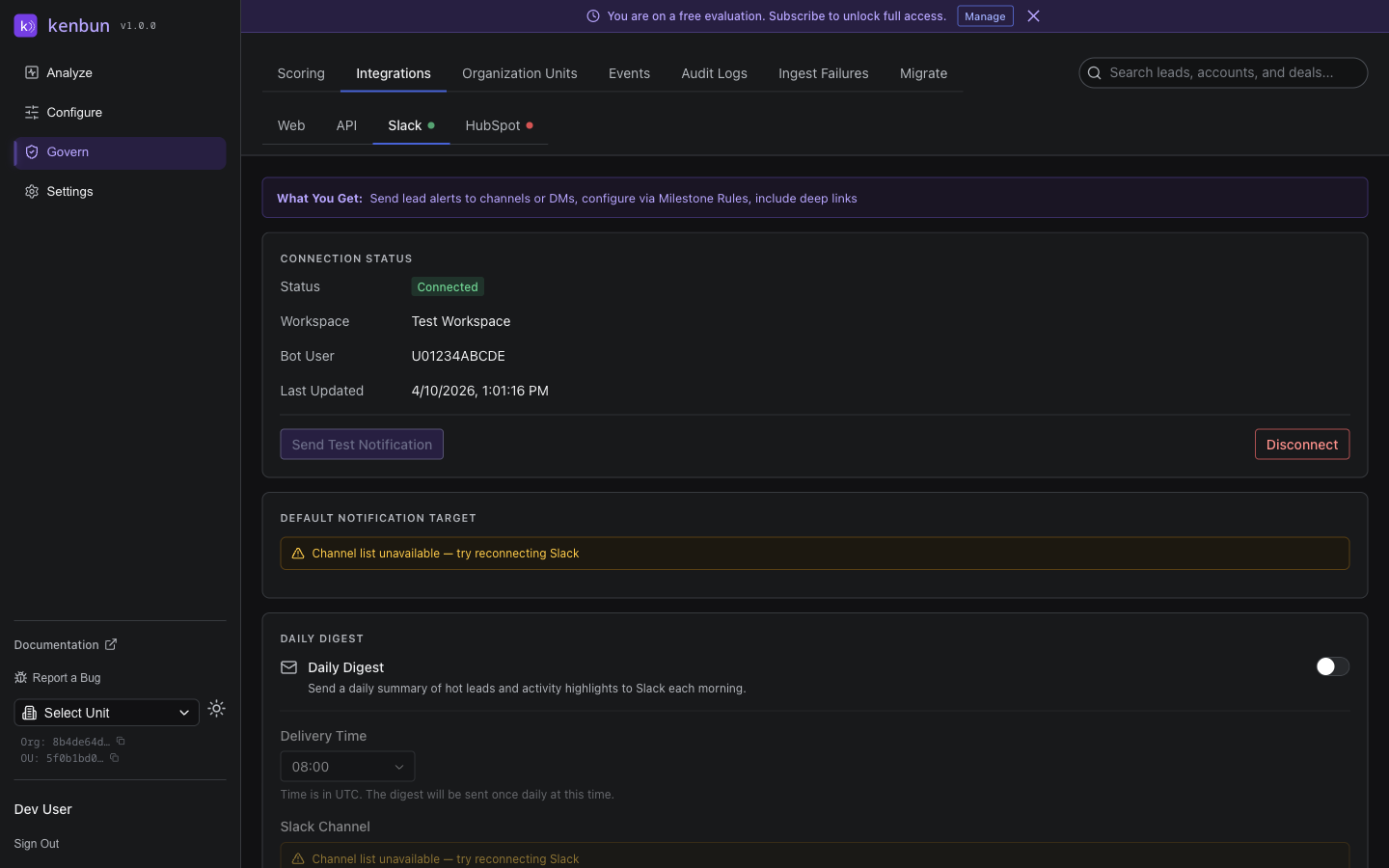
Step 3: Test Connection
- Click Send Test Notification
- Verify message appears in default channel
- Connection is ready to use
Notification Features
Slack notifications include:
Lead Information:
- Lead name or primary identifier (email, phone, etc.)
- Current engagement score
- Engagement level (e.g., "High", "Medium")
Score Breakdown:
- Top 3 activities from last 24 hours
- Activity counts and point values
- Format:
Event Type (count × points) +total
Interactive Actions:
- View Lead button — Opens lead in kenbun
- Assign to Me button — Claims the lead
- View in HubSpot button (if HubSpot connected)
Example Notification:
Hot Lead Alert

Lead: jane.doe@example.com
Score: 75 points
Level: High Engagement

Recent Activity (24h):
- Page View (5x @ 10 pts) +50
- Email Open (3x @ 5 pts) +15
- Form Submit (1x @ 20 pts) +20

[View Lead] [Assign to Me]
Accepting Leads From Slack
Trigger notifications include two buttons:
- View in kenbun — opens the lead in the kenbun web app.
- Accept Lead — claims ownership of the lead without leaving Slack.
When you click Accept Lead:
- The lead is assigned to you in kenbun, and the channel message updates to "Lead accepted by @your-name at <time>" with the buttons removed so teammates immediately see the lead is taken.
- If someone else clicked first, you see a private "Already accepted by @<their-name>" message and no changes are made.
- If you are not yet a kenbun user in this organization, you see a private message asking your admin to invite you. No re-OAuth or new Slack permissions are required to use this button — it works with your existing kenbun Slack connection.
First-click-wins is enforced server-side: simultaneous clicks cannot accidentally overwrite an existing owner.
Disposition Nudges
Scoring only improves when your team tells kenbun how leads actually turned out. Disposition nudges keep that feedback flowing — and show your team the payoff — entirely inside Slack.
There are two parts:
1. Awaiting-disposition reminders. On a schedule (weekly by default), each lead owner gets a direct message listing the leads they accepted but have not yet logged an outcome on. Every lead in the list carries the same one-tap outcome buttons as a lead alert, so a rep can clear their queue without leaving Slack.
2. Calibration payoff messages. After each weekly calibration run, kenbun posts a short summary of what your team's feedback produced — how many outcomes were logged, how close you are to unlocking weight suggestions, and, once you cross 30 logged outcomes, a one-time note that suggestions are now live. See Calibration Readiness for the full picture.
Configuring Disposition Nudges
Go to Settings → Integrations → Slack → Disposition Nudges. Reminders are on by default once Slack is connected, since logging outcomes is the whole point.
| Setting | What it controls |
|---|---|
| Enabled | Turn the awaiting-disposition reminder on or off |
| Payoff messages | Turn the calibration payoff and readiness messages on or off |
| Cadence (days) | How often reminders are sent. Default 7 (weekly) |
| Minimum age (days) | How long a lead must have had an owner before it shows up, so reps aren't nudged the moment a lead is assigned. Default 3 |
| Minimum score | Only include leads scoring at or above this value, so reps aren't reminded about low-value leads. Default 0 (no floor) |
| Maximum leads per owner | The most leads listed in one reminder, so the message stays scannable. Default 8 |
Individual team members can mute these reminders in their own notification preferences without affecting the rest of the team.
A lead that goes another cycle without an outcome will reappear in the next reminder — that repeat is intentional, gentle pressure to close the loop.
Notification Routing
Send to Channels:
- Public channels (kenbun bot must be invited)
- Private channels (bot must be invited)
- Multiple channels per trigger supported
Send to Users:
- Direct message to specific user
- Round-robin assignment
- Based on lead owner or territory
Default Target:
- Set default channel/user per OU
- Used when trigger doesn't specify target
- Can be overridden per trigger
Configuring Triggers for Slack
When creating Milestone or Sequence Triggers:
- Enable Send to Slack
- Choose Channel or User
- Select from dropdown:
- Channels: Shows all accessible channels
- Users: Shows workspace members
- Optional: Add custom message
- Save trigger
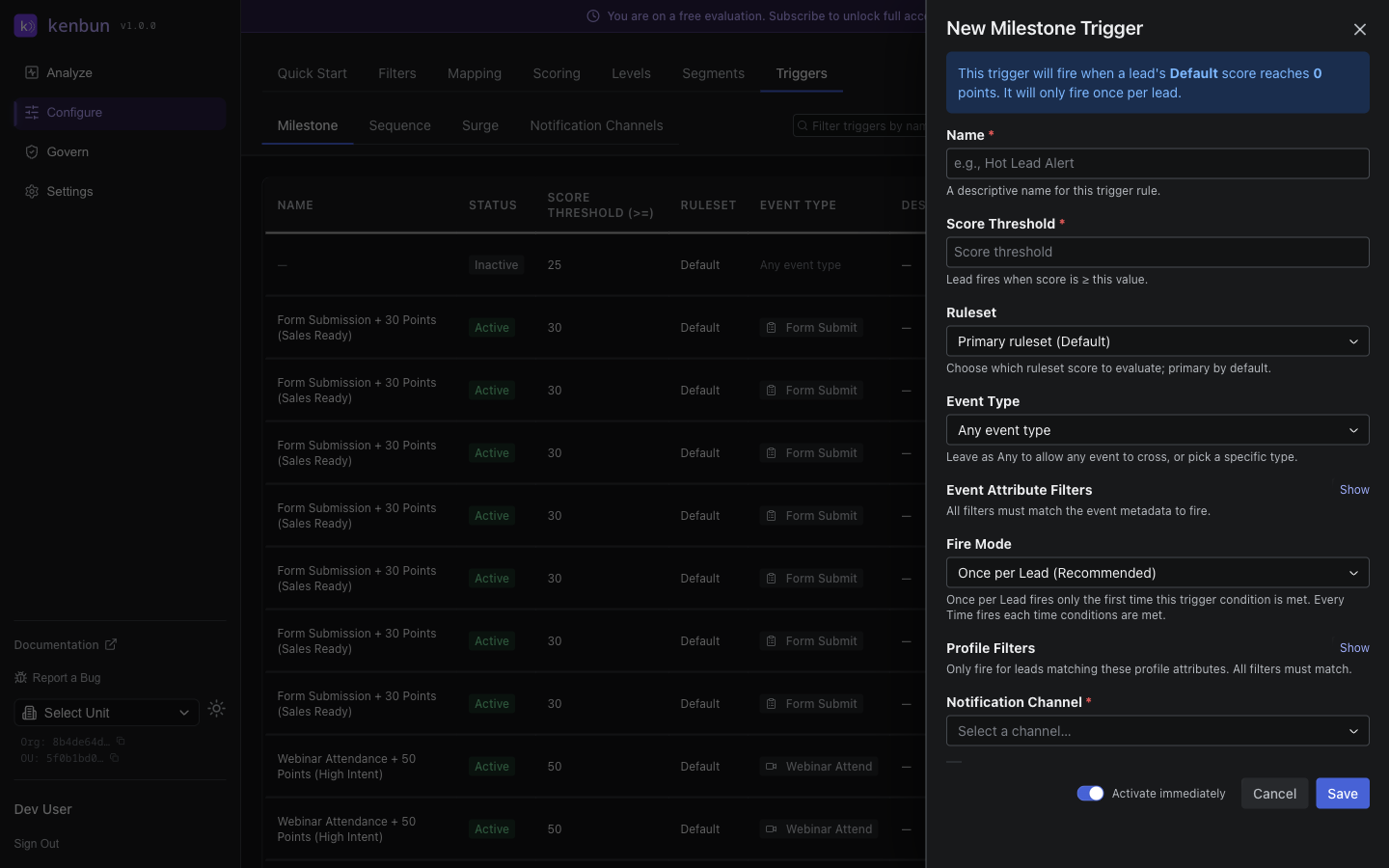
Example Configuration:
- Trigger: Lead reaches 50 points
- Send to: #sales-hot-leads channel
- Custom message: "New qualified lead ready for outreach"
Managing Slack Connection
Disconnect Slack:
- Go to Settings → Integrations → Slack
- Click Disconnect
- Existing triggers will stop sending notifications
Reconnect:
- Follow the connection steps again
- Previous trigger configurations are preserved
- Channel/user selections may need updating if changed
Update Default Channel:
- Click Change Default Target
- Select new channel or user
- Click Save
Troubleshooting
Connection Failed:
- Verify Slack app credentials are correct
- Check workspace permissions
- Ensure you have admin access
- Try disconnecting and reconnecting
Notifications Not Appearing:
- Verify channel still exists
- Check that kenbun bot is in the channel (invite it:
/invite @kenbun) - Verify user hasn't blocked the bot
- Check trigger is enabled
- Review recent errors in the Slack health dashboard
"Channel Not Found" Error:
- Channel may have been deleted or renamed
- Update trigger with new channel
- Invite kenbun bot to private channels
Bot Not Responding to Buttons:
- Verify Slack app has interactive components enabled
- Check request URL is configured correctly
- Ensure webhook signature validation passes
- Review Slack app event subscriptions
Slack Health Dashboard
Monitor Slack integration health from Settings > Integrations > Slack:
- Connection status
- Last successful notification
- Failed notification count
- Recent errors
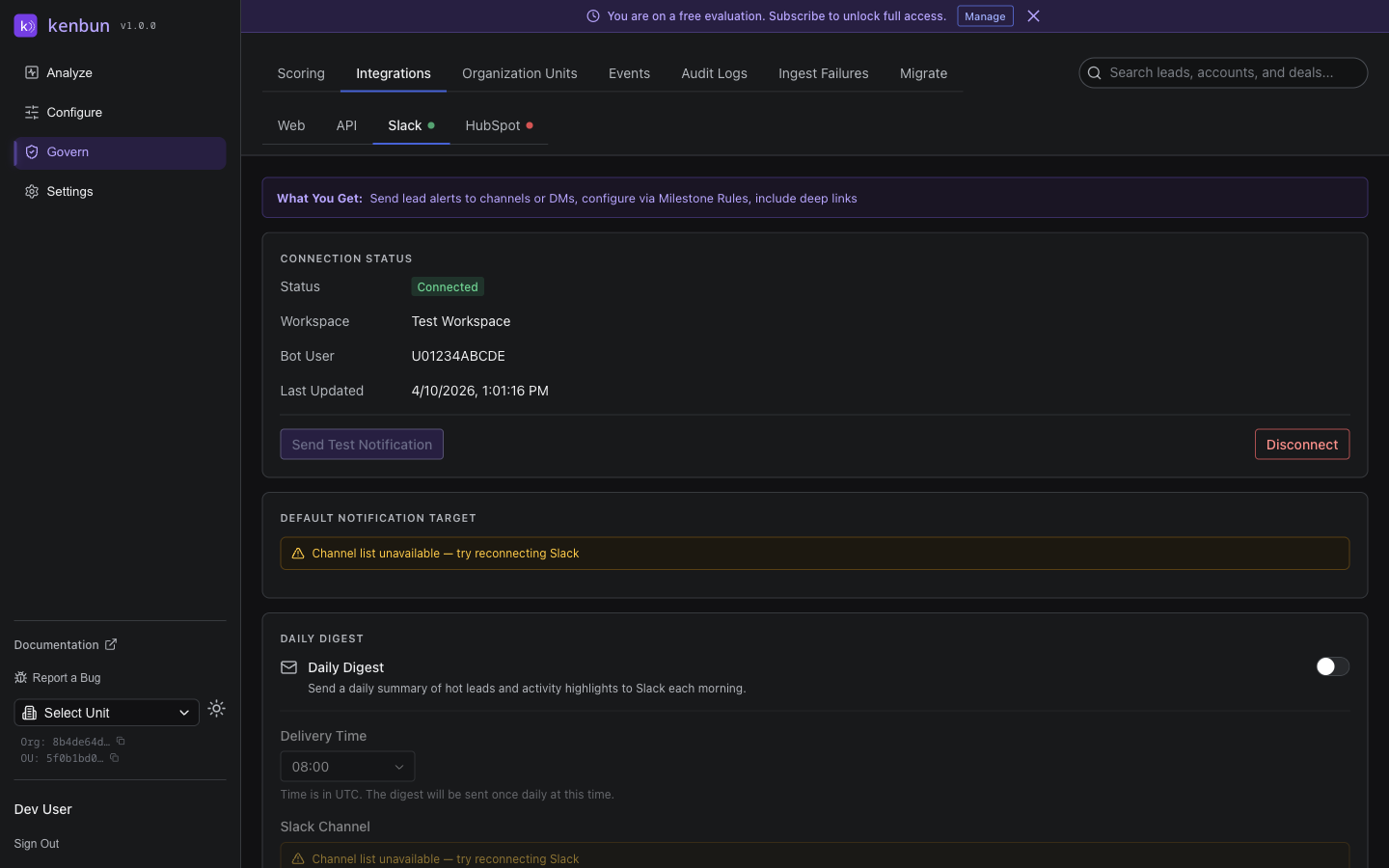
Health Indicators:
- Green dot: All systems working
- Amber dot: Minor issues detected (recent errors but connection still active)
- Red dot: Connection problems requiring attention
Integration Health Dots
When you navigate to Settings > Integrations, each integration tab (Web, API, Slack, HubSpot) shows a colored dot next to its name indicating the current health status at a glance:
| Dot Color | Meaning |
|---|---|
| Green | Connected and healthy, no recent errors |
| Amber | Connected but recent errors detected |
| Red | Not connected or authentication failed |
| No dot | Not yet configured |
This gives you an immediate overview of which integrations need attention without opening each tab.
Notification Channels
Slack notification channels are reusable destinations that triggers point at. Manage them in Configure > Triggers > Channels.
Invite the kenbun bot before saving
Slack requires the kenbun bot to be a member of any channel it posts to. When you save a Slack notification channel, kenbun verifies the bot is in the channel and refuses the save with an inline message if it isn't:
kenbun needs to be invited to #sales-reps before notifications can be delivered. In Slack, type
/invite @kenbunin the channel, then save again.
Run the /invite @kenbun command in Slack, then click Save again. This pre-flight check prevents the silent-failure mode where a misconfigured channel looks like it saved successfully but loses every notification afterward.
Test channel button
Each Slack channel row in the channels list has a Test button (admin-only). Click it to post a real "kenbun test message" to the channel. The button shows a spinner while the message is in flight; on success you see "Test message sent" and the message appears in Slack. On failure, the exact reason is shown inline below the row.
Use the Test button sparingly. Slack rate-limits message posts per workspace (~1 per second per channel), and every test counts against that budget alongside real notifications.
Channel health badge
Every Slack channel row shows a colored dot next to its delivery health:
| Dot color | Meaning |
|---|---|
| Green | Delivering normally — no failures in the past 24 hours |
| Amber | Recent transient failures (rate limits, brief Slack outages); still recoverable |
| Red | Bot not in channel, channel archived, or a similar permanent error — needs admin action |
| Gray | No delivery activity yet |
Click any non-gray badge to open the Recent Failures drawer with the full error list. Red badges link to Edit Channel so you can fix the configuration without leaving the page.
Related
- Integrations overview
- Triggers — Configure when Slack notifications fire
- HubSpot Integration