Profile Levels
Profile Levels bucket a lead's profile fit score — the score derived from firmographic and demographic attributes — into named tiers. They answer the question: how well does this person and their company match our Ideal Customer Profile?
When To Use Profile Levels
Engagement tells you who's interested. Profile fit tells you who's worth your time even if they haven't engaged yet — and who isn't, even if they're flooding you with form submissions.
Use profile levels to:
- Prioritize sales-assisted outreach to leads with strong ICP fit.
- Filter out tire-kickers and competitors who pile up engagement without ever buying.
- Build segments for ABM campaigns ("Strong Fit, Cold" — accounts you want to wake up).
Example Configuration
A typical four-tier fit model:
| Name | Range | Meaning |
|---|---|---|
| Poor Fit | 0–24 | Doesn't match ICP criteria |
| Okay Fit | 25–49 | Some ICP match; moderate priority |
| Strong Fit | 50–74 | Good ICP match; high priority |
| Perfect Fit | 75+ | Ideal customer profile |
The exact ranges depend on how your Profile Scoring Rules are weighted. Look at the score distribution across your existing leads before locking thresholds.
Configuring Profile Levels
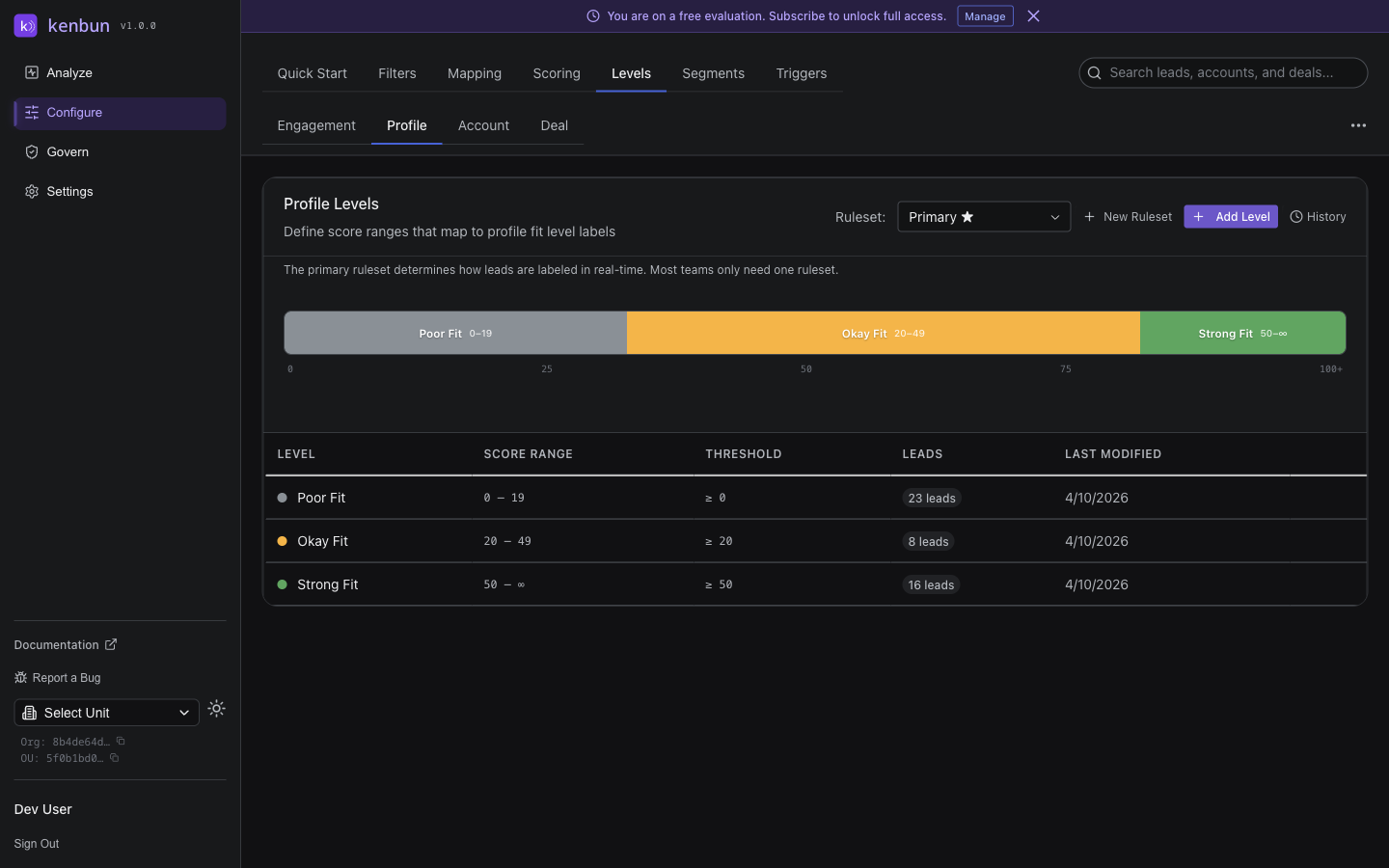
- Navigate to Configure > Levels > Profile.
- Click Add Level.
- Enter:
- Name — the tier label (e.g., "Strong Fit")
- Min Score (inclusive)
- Max Score (inclusive, or leave blank for the top tier)
- Color (optional)
- Click Save.
Profile levels follow the same non-overlapping range rules as engagement levels. The top tier should be open-ended so unusually well-fitting profiles still map cleanly.
History and Revert
Click History next to Add Level to view every change. Click Revert on any snapshot to restore that configuration — reclassification happens immediately.
Best Practices
Anchor To Closed-Won Data
The most defensible profile model is grounded in conversion data. Look at the leads who actually closed:
- What's the median profile score among closed-won?
- What's the bottom of that range?
Set "Strong Fit" so its lower bound matches the bottom of your closed-won distribution. This way, "Strong Fit and above" is a meaningful sales-ready tier.
Combine With Engagement Levels
The most actionable signal in kenbun is the cross-section of profile and engagement. Build segments like:
- Strong Fit + Hot — closing-priority accounts
- Strong Fit + Cold — re-engagement targets
- Poor Fit + Hot — possible spam, competitors, or low-quality leads
The Analyze Overview's Profile Fit × Engagement Level matrix surfaces this distribution at a glance.
Don't Over-Weight Profile
Profile fit is slow-moving — once set, it rarely changes. Engagement is dynamic. If profile dominates the combined picture, you'll miss real-time buying signals. Treat profile as a filter, not a primary prioritization signal.
Troubleshooting
A Lead Shows No Profile Level
Either the lead has no profile score (no rules matched) or the score falls outside every defined range. Check the lead's profile score on the lead detail page; if it's nonzero, add a tier covering its range.
Most Leads Land in One Tier
Your scoring rules are probably too uniform — for example, everyone gets the same +20 for "country = US" and nothing else discriminates further. Add rules that meaningfully separate leads (industry weighting, company size tiers, role seniority).
Profile Levels Page Is Missing or Looks Different
The page only shows levels for the active OU. If you switched OUs, you'll see that OU's levels. To configure levels in another OU, switch first via the OU selector.
Related
- Levels Overview
- Engagement Levels
- Profile Scoring Rules
- Profile Mapping — set up the profile fields you'll score against